Troubleshooting Looks Can Kill AI: Upload, Render, Face, Hands, Stiffness, Aspect Ratio and Credits
 Looks Can Kill AI Team
A practical troubleshooting guide for Looks Can Kill AI on Seedance 2.0: fix upload rejects, failed renders, face drift, broken hands, stiff clips, wrong aspect ratio and missing credit refunds.
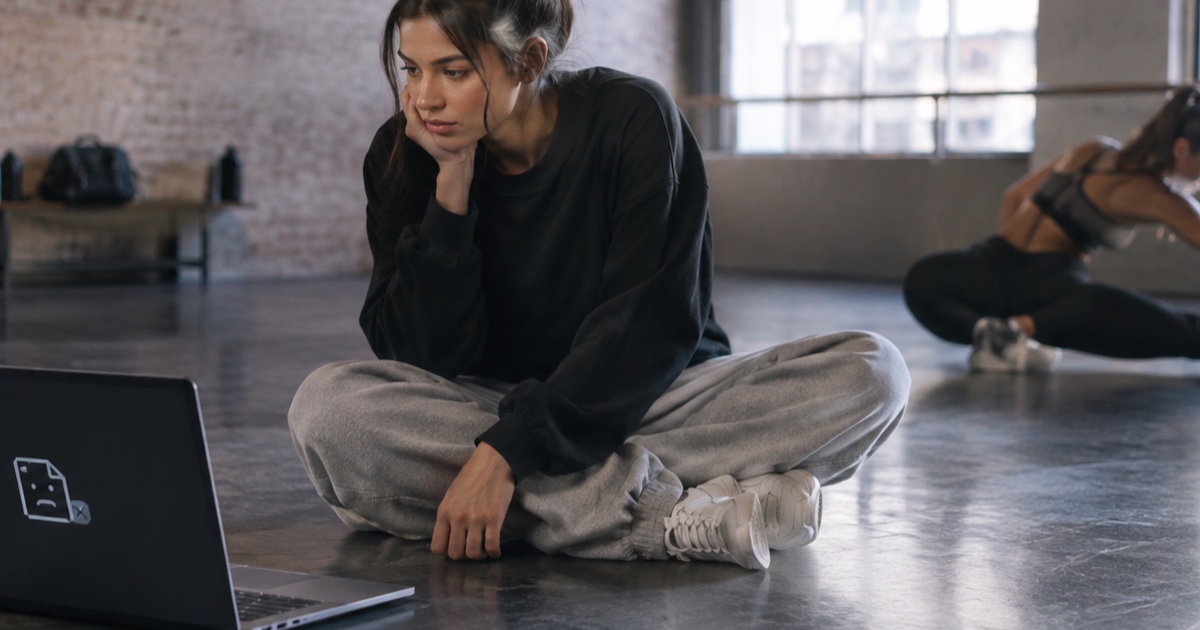
Looks Can Kill AI is an independent photo/text-to-video studio built on Seedance 2.0. It is not affiliated with IVE or Starship Entertainment, and it does not include the official recording, official video or member likenesses. For context, IVE is a K-pop girl group under Starship Entertainment. “Looks Can Kill” is the title track of their fifth EP; the single was released on 19 October 2026, and the EP follows on 26 October 2026. The release uses a girl-hero concept and a finger-gun / point choreography. This site is a separate creative tool, not an official IVE product.
Most problems in a text-to-video or photo-to-video session come from one of three places: the input photo, the render settings, or the credit logic. When a clip fails, it is tempting to rewrite the whole prompt. A better approach is to change one variable at a time, confirm what the studio accepted, and then retry with a simpler setup.
This guide covers the common failure points: upload rejected, render failed, face drifts, hands break, clip looks stiff, wrong aspect ratio, and credits not returned. You may only upload your own photo or a photo you have permission to use. Do not upload member likenesses or any image you do not have rights to use. If you are new to the workflow, start at the studio, review pricing, and keep the feature page open while you test.
Example loaded — edit it or generate.
This clip: 35 credits · 10 clips a month for $39.90 (Pro), or 102 a year for $319
Upload rejected: fix the photo before you fix the prompt
An upload rejection is usually a photo problem, a rights problem, or a safety filter problem. The studio cannot verify permission for you, so use a photo you took, a photo you commissioned, or a photo with clear permission from the person shown. If the upload is a screenshot from a video, a magazine, or a social post, replace it with a clean source file you are allowed to use.
The upload checklist
- Use one clear person in the frame, with the face visible and not heavily obscured.
- Crop out extra people, busy backgrounds, logos, watermarks and text overlays.
- Use even lighting and avoid extreme blur, heavy filters or deep shadows across the face.
- Confirm you have permission to use the photo, especially if another person appears in it.
- Try a standard photo format and a smaller file if the original is very large.
If the upload still fails, simplify the image rather than adding more detail. A clean portrait or upper-body photo gives the model fewer conflicting signals. For a dance-style clip, a full-body or three-quarter photo can work, but the face and hands need to be readable. If you are still mapping the creative direction, read what is IVE Looks Can Kill AI before you spend credits on test renders.
Render failed: read the status, then reduce variables
A failed render is not the same as a bad render. A bad render completes and charges credits; a failed render should be refunded. If a render fails, check the status first. If it still shows as processing, wait and refresh before retrying. If it shows failed, confirm the credit movement before you launch a new attempt.
Common causes of render failure include an unsupported or unsafe input, a prompt that conflicts with the photo, a request that is too complex for the chosen length, or a temporary service timeout. Do not immediately retry at the highest resolution. Drop to 480p for a short test, simplify the prompt, and keep the clip close to 5–8 seconds while you isolate the issue.
A safe retry order
Start with the lowest-cost test that answers the question. If the goal is to check whether the face survives motion, a short 480p test is enough. If the motion is right, move to 720p standard for the final social clip. Use 1080p only when you have already confirmed the pose, framing and duration. Failed renders are refunded, but successful test renders still consume credits, so test deliberately.
Face drifts: lock identity before adding choreography
Face drift means the person in the clip stops looking like the person in the uploaded photo. It often appears when the prompt asks for fast turns, big camera moves, close-up hand gestures near the face, or too many dance steps in a short clip. The model has to preserve identity while generating motion, and every extra demand makes that harder.
Use a clear face reference. Keep the camera mostly stable. Ask for a medium shot or a three-quarter shot rather than a tight close-up. Reduce head turns. If the concept needs a finger-gun or point gesture, keep the hand away from the cheek and eye line at first, then add style after the face is stable. Shorter clips also help: a 5–8 second clip with one clear action is easier to control than a 12-second clip with three costume changes and a spin.
Write prompts with continuity cues: “same person as the reference photo,” “consistent face,” “slow camera,” “natural head movement,” “medium shot,” and “minimal camera shake.” Avoid stacking contradictory directions such as “fast spin” and “keep face perfectly still.” If the face still drifts, remove one motion instruction and retry. For a motion-first workflow, the how to make a Looks Can Kill AI dance video guide is a useful companion.
Hands break: simplify the gesture and change the shot
Hands are a known weak point in generated video, especially with finger-gun, pointing, waving and close-up choreography. The fix is not always a longer prompt. Often it is a different shot. Move from a close-up to a medium shot, keep hands lower in the frame, and avoid crossing hands over the face. If the concept is a point choreography, ask for one clear point per clip instead of a full sequence.
Break the dance into beats. Generate a short clip for the point gesture, a separate clip for the step-touch, and a separate clip for the hero pose. That gives you more usable takes and makes it easier to discard a broken hand without losing the whole sequence. If a hand still breaks, crop the final clip in editing or use a wider frame where the hand is smaller. Do not expect the model to fix a hand that is already hidden, blurred or cut off in the source photo.
Clip looks stiff: add weight, timing and camera language
A stiff clip usually means the prompt describes a pose but not movement. “Dance” is too vague. “Step-touch with a slight hip shift, relaxed shoulders, one arm swinging naturally, slow camera push-in” gives the model timing and weight. Add small human details: a pause before the point, a weight transfer from one foot to the other, a shoulder roll, or a head tilt after the gesture.
Keep the duration realistic. A 5–12 second output is short. If you ask for a full chorus, the model will compress the motion and the result may look robotic. Use one or two actions per clip. For the girl-hero concept, try a strong stance, a single finger-gun point, and a confident camera move. Then generate a second clip for the next beat. The feature page explains the dance-oriented workflow, and the studio is where you test it.
Wrong aspect ratio: start from 9:16 and design for it
Output is 9:16 by default, with a 5–12 second duration. If your source photo is landscape, the model has to fit a wide image into a vertical frame. That can crop heads, hands or feet in unexpected ways. Before uploading, crop the photo to a vertical composition with safe space above the head and around the hands.
If the final clip looks wrong on a social platform, check whether the platform is cropping a 9:16 file or whether the file itself was exported differently. Download the clip first, then place it in your editor. Do not judge aspect ratio from a preview player that letterboxes or fills the screen. If you need a different composition, adjust the source crop and the prompt together: “vertical medium shot, full upper body, hands visible, centered subject.”
Credits not returned: check the render state and the credit type
Failed renders are refunded, but credits can be confusing when monthly and yearly packs are mixed. One-time packs never expire. Monthly credits expire at the end of the billing month. Yearly credits are valid for the billing year. Credits start at $9.90, and the standard 720p 12-second clip costs 35 credits. The 480p 12-second clip costs 20 credits, and the 1080p 12-second clip costs 90 credits.
| Output | Example length | Credit cost | Best use | | ------------- | -------------- | ----------- | --------------------------- | | 480p | 12s | 20 credits | Quick motion and face tests | | 720p standard | 12s | 35 credits | Normal social-ready clips | | 1080p | 12s | 90 credits | Final clips after testing |
If a failed render does not show a refund, refresh the page and check the credit history before retrying. Confirm whether the render is failed or still processing. If it is failed and the credit movement still looks wrong, contact support through the route shown on the site with the render time, prompt summary and any render ID you can see. Do not run repeated premium retries while you are unsure whether the first job failed. Review pricing for the current pack rules before you top up.
FAQ
Why was my upload rejected?
The most common reasons are a photo you do not have permission to use, a face that is too small or obscured, multiple people in the frame, text or logos in the image, or a safety filter. Use your own photo or a photo you have permission to use, crop to one clear person, and try a cleaner file.
Will I lose credits if a render fails?
Failed renders are refunded. Check that the job actually failed rather than still processing, refresh the page, and review the credit history. If the failed render still does not show a refund, contact support with the render details before launching more tests.
How do I stop face drift?
Use a clear face reference, keep the camera stable, avoid fast head turns, and start with a medium shot. Reduce the clip to one action, add “consistent face” and “same person as the reference photo” to the prompt, and test at 480p before spending 720p or 1080p credits.
Why do hands break during finger-gun or point choreography?
Hands are hard to generate when they are close to the face, moving quickly, or crossing other objects. Use a medium shot, keep the hand lower, ask for one point gesture per clip, and generate separate short clips for each beat instead of one long sequence.
Why is my clip stiff?
The prompt probably describes a pose but not motion. Add weight shifts, natural timing, shoulder movement and simple camera language. Keep the clip short, use one or two actions, and avoid asking for a full dance routine in a single 5–12 second render.
Why is my output 9:16 when I wanted a different ratio?
Output is 9:16 by default. Crop your source photo vertically before upload, leave safe space around the head and hands, and check the downloaded file rather than a preview player. If a platform crops it further, adjust the composition in your editor or re-crop the source and regenerate.
Related guides
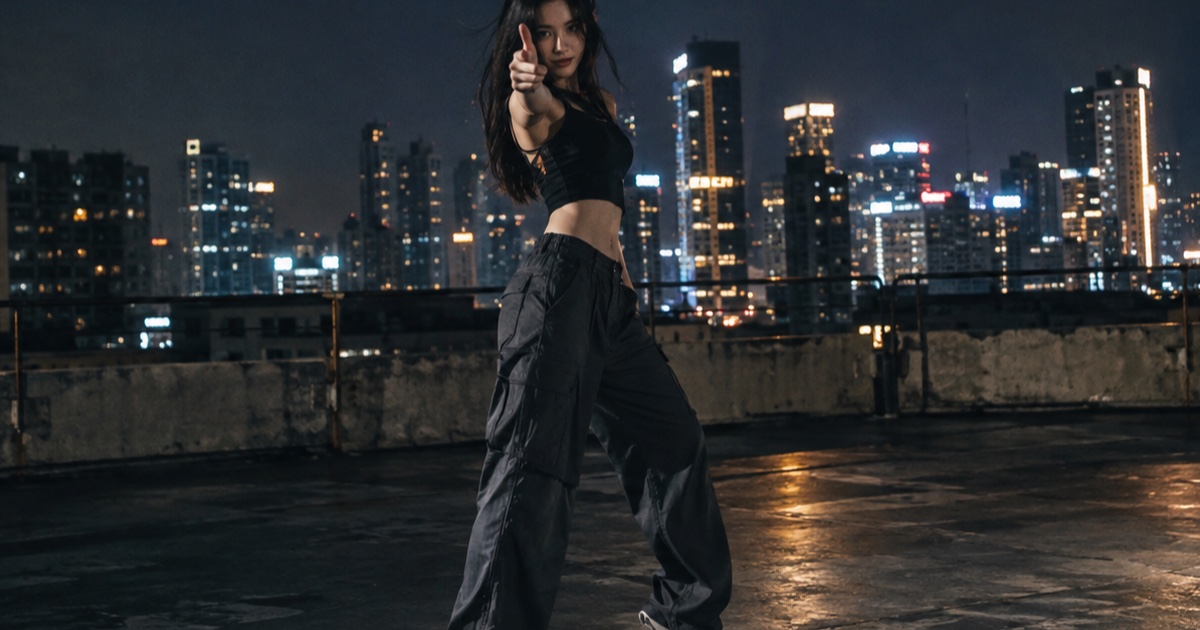
What the IVE Looks Can Kill AI Trend Actually Is
A practical guide to the IVE Looks Can Kill release, the girl-hero concept, fan-made photo-to-dance videos, and where the independent Looks Can Kill AI studio fits.
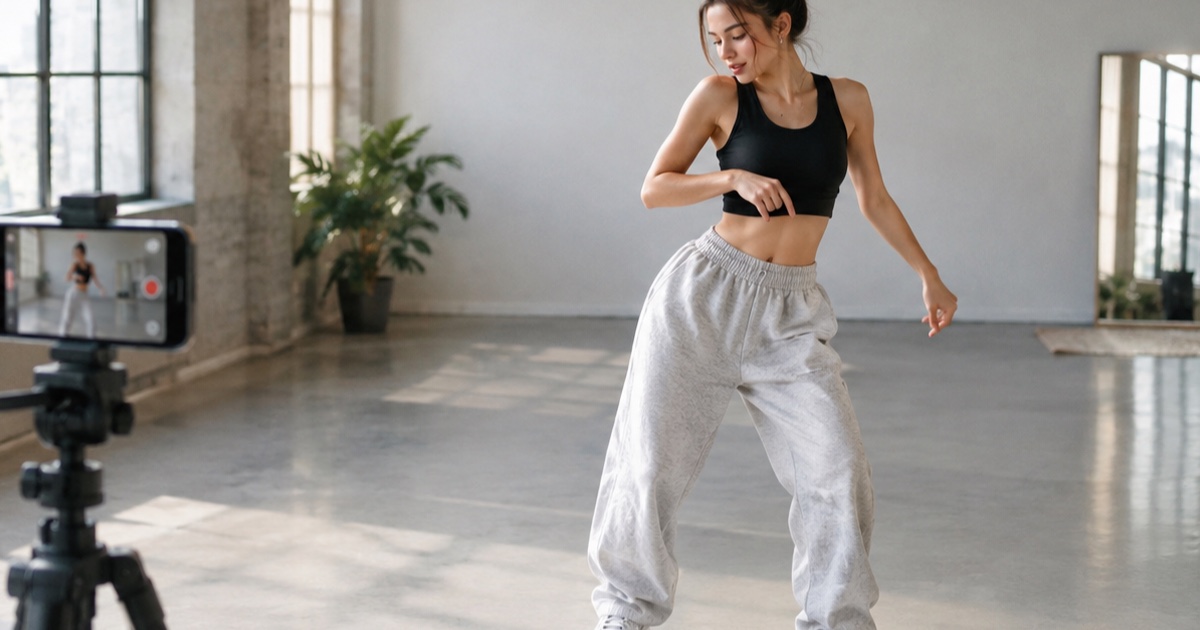
How to Make a 12-Second Vertical Hero-Point Dance Clip from One Photo
A practical step-by-step tutorial for turning one photo into a 9:16 hero-point dance clip with Looks Can Kill AI — source photo tips, motion prompts, credit costs, and export notes.
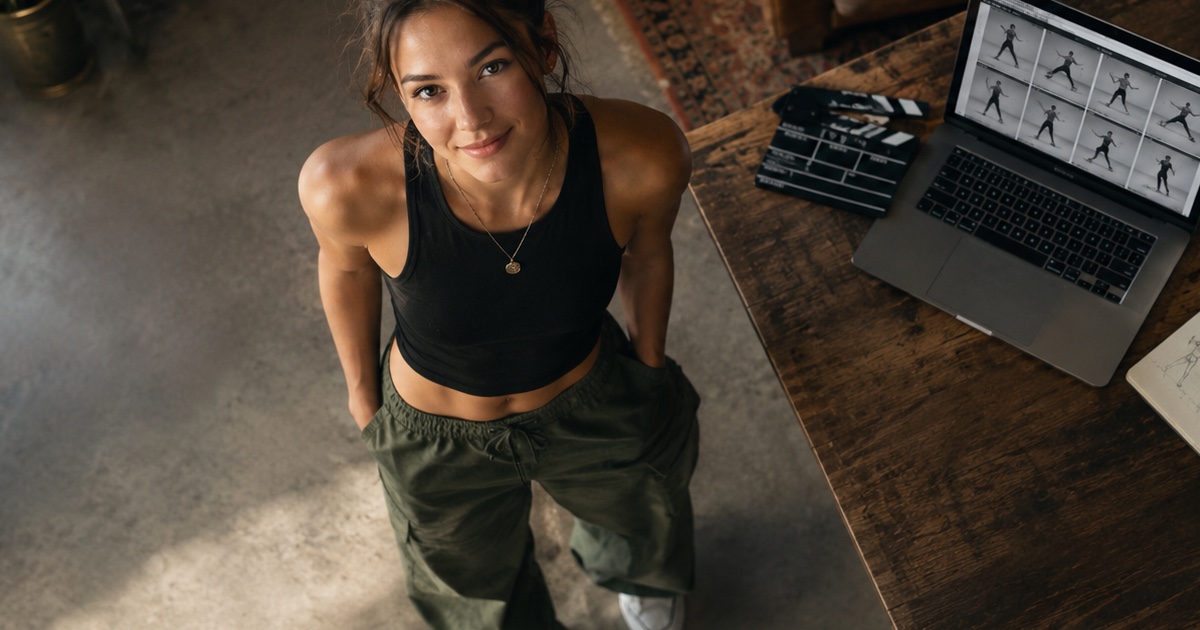
How to Write a Hero-Point Dance Prompt for Looks Can Kill AI
A practical prompt guide for the IVE “Looks Can Kill” hero-point dance vibe: subject lock, scene, one action, camera and exclusions, with five complete example prompts.