How to Join the Looks Can Kill Challenge With an AI Clip
 Looks Can Kill AI Team
A practical guide to planning the point, choosing a preset, adding audio in TikTok or Instagram, and labelling AI content for the Looks Can Kill challenge.
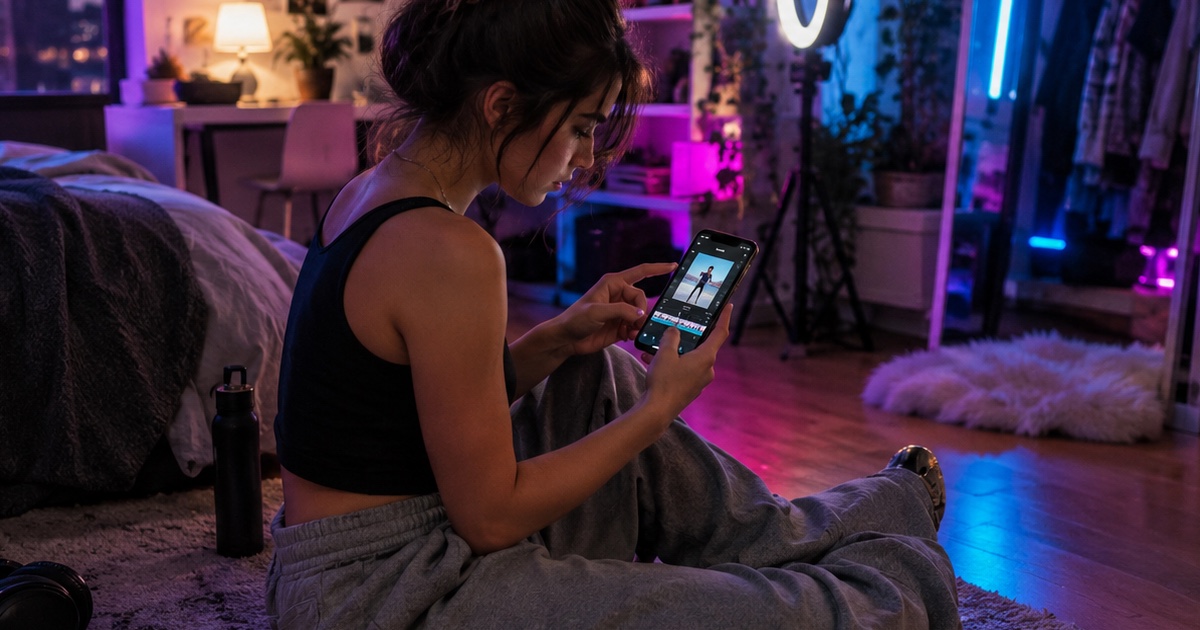
The Looks Can Kill challenge is built around a short, sharp gesture: the finger-gun and point choreography from IVE's "Looks Can Kill." For context, IVE is a K-pop girl group under Starship Entertainment. "Looks Can Kill" is the title track of their fifth EP; the single was released on 19 October 2026 and the EP follows on 26 October 2026. The release uses a girl-hero concept, and the point move is the reason the trend works in a 5-12 second clip.
Looks Can Kill AI (lookscankillai.pro) is an independent photo/text-to-video studio built on Seedance 2.0. It is not affiliated with IVE or Starship. The site does not include the official recording, official video, or member likenesses. You may only upload your own photo or a photo you have permission to use. This guide shows how to join the challenge with an AI clip: plan the point, choose the preset, add audio in TikTok or Instagram, and label the result as AI content. For background, see what the IVE Looks Can Kill AI trend is; for a broader walkthrough, read how to make a Looks Can Kill AI dance video.
Example loaded — edit it or generate.
This clip: 35 credits · 10 clips a month for $39.90 (Pro), or 102 a year for $319
At the studio, you start from a photo or text prompt and generate a vertical clip. The default output is 9:16 and 5-12 seconds, which is exactly the shape of a challenge clip. You can check pricing and the Looks Can Kill AI dance feature page before you generate. Credits start at $9.90; a standard 720p 12-second clip costs 35 credits, 480p 12s costs 20 credits, and 1080p 12s costs 90 credits. Failed renders are refunded.
Step 1: Plan the point before you generate
The challenge does not need a full dance routine. It needs one readable point. Decide what the viewer should notice in the first second: the finger-gun hand shape, the elbow angle, the eye line, or the weight shift that sells the girl-hero attitude. If the gesture is unclear, the clip will feel like a generic video with a hand movement.
Use a numbered plan like this:
- Choose one hero gesture: a finger-gun point toward camera, a side point, or a two-beat point-and-hold.
- Pick a start pose and end pose that fit in 5-12 seconds. Do not try to cram in a full chorus.
- Frame from the waist up or chest up so the hand, face, and shoulder line stay visible in 9:16.
- Keep the background simple. A clean wall, a doorway, or a plain studio backdrop makes the point read better.
- Write a prompt that names the gesture, camera angle, and mood. For example: "vertical portrait, chest-up framing, one clear finger-gun point to camera, confident girl-hero stance, stable camera, no text."
- Check that your source photo is yours or used with permission. If anyone else is in the photo, get their permission too.
The finger-gun / point choreography is the trend's anchor, but you do not need to copy the official video. In fact, the site cannot provide the official video or member likenesses. Build the moment from your own photo and a clear gesture.
Step 2: Choose the preset and credit tier
Pick a preset that protects the upper body and hand shape. The feature page is the right starting point for the Looks Can Kill style. If you are testing a pose, use 480p first. If the point reads well, render the final at 720p or 1080p.
| Output | Length | Credits | Best use | | ------ | ------ | ---------- | ----------------------------------------------- | | 480p | 12s | 20 credits | Testing pose, framing, and the point | | 720p | 12s | 35 credits | Standard challenge clip for TikTok or Instagram | | 1080p | 12s | 90 credits | Final export when the gesture is clean |
All outputs are 9:16 by default and run 5-12 seconds. A 12-second clip is the standard unit for pricing above. Credits start at $9.90. One-time packs never expire; monthly credits expire at the end of the billing month; yearly credits are valid for the billing year. Failed renders are refunded, so a bad generation is not a reason to panic - review it, adjust the prompt or photo, and try again.
Step 3: Generate, review, and re-roll smartly
Start with a 480p test if you are unsure about the pose. Look for three things: the hand shape, the face, and the background. If the hand turns into a blob or the point disappears, simplify the prompt and use a clearer source photo. If the face drifts, use a photo with a straight-on or slightly angled head and even lighting.
Do not overstuff the prompt. A short prompt with one gesture, one framing choice, and one mood usually works better than a paragraph of conflicting directions. Keep the clip within 5-12 seconds, export in 9:16, and keep the point near the middle of the frame so platform UI does not cover it.
Step 4: Add audio in TikTok or Instagram
The site does not include the official recording. That is deliberate: the AI studio makes the visual clip, and you add audio inside the platform you post to. Use the in-app audio library in TikTok or Instagram. If the official "Looks Can Kill" sound is available in your region and account, the app handles the licensing for that use. If it is not available, choose a licensed alternative that fits the same tempo. Do not rip audio from a video and re-upload it.
A practical audio workflow:
- Export your AI clip without expecting the site to provide the song.
- Open TikTok or Instagram and start a new post with the clip.
- Search the in-app audio library for the track or a licensed alternative.
- Trim the clip so the finger-gun point lands on the first strong beat.
- Lower any original clip audio so the track is clear.
- Preview with platform UI visible, then post.
If you are posting to both platforms, add the audio separately in each app. Do not assume a saved draft carries the same licensed audio across apps.
Step 5: Label AI content clearly
Label the clip as AI-generated. TikTok and Instagram both provide disclosure settings; wording and placement change by app version, so look for the AI-generated content label in post settings before publishing. In the caption, be plain: "AI-generated clip made with Looks Can Kill AI from my own photo." Add #AIgenerated or #AIvideo if you want extra clarity.
Do not imply that the clip is official, endorsed by IVE or Starship, or made with member likenesses. Do not use the official recording as if the site supplied it. The cleanest challenge entry is transparent: your photo or a photo you have permission to use, an AI-generated visual, in-app licensed audio, and a visible AI label.
A quick pre-post checklist
- The point gesture is readable in the first second.
- The clip is 9:16 and 5-12 seconds.
- The source photo is yours or used with permission.
- The audio comes from the TikTok or Instagram in-app library.
- The AI-generated label is on, and the caption says it is AI.
- You are not claiming official affiliation with IVE or Starship.
FAQ
Is this challenge official?
No. Looks Can Kill AI is an independent studio and is not affiliated with IVE or Starship. The site does not include the official recording, official video, or member likenesses. The challenge trend references IVE's "Looks Can Kill," the title track of their fifth EP under Starship Entertainment, but your entry should be your own AI-generated clip.
Can I use the official "Looks Can Kill" audio?
The site does not provide it. Add audio inside TikTok or Instagram using the in-app library. If the official sound is available and permitted for your account and region, the platform handles that use. Do not download and re-upload the track.
What photo should I upload?
Upload your own photo or a photo you have permission to use. Use a clear, well-lit image with one main subject and visible shoulders and hands. If another person is in the photo, get their permission. Do not upload photos of IVE members or other people without permission.
How much does a clip cost?
Credits start at $9.90. A 480p 12-second clip costs 20 credits, 720p 12s costs 35 credits, and 1080p 12s costs 90 credits. Output is 9:16 by default and runs 5-12 seconds. Failed renders are refunded. One-time packs never expire; monthly credits expire at the end of the billing month; yearly credits are valid for the billing year.
How do I label the clip as AI-generated?
Use the AI-generated content label in TikTok or Instagram post settings, then add a caption such as "AI-generated clip made with Looks Can Kill AI." Add #AIgenerated or #AIvideo. The label should be visible before publishing, not hidden in a comment.
Can I make a shorter clip?
Yes. Output runs 5-12 seconds, and 9:16 is the default. A shorter clip can work well if the point is clear, but check that the gesture and the beat still fit before you post.
Related guides
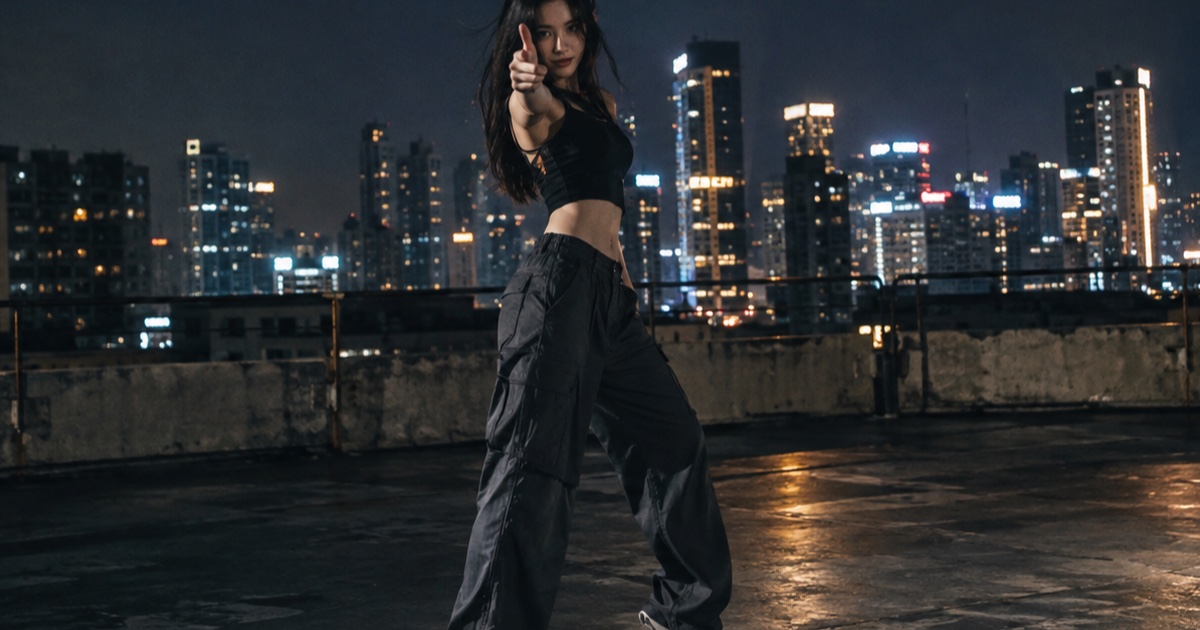
What the IVE Looks Can Kill AI Trend Actually Is
A practical guide to the IVE Looks Can Kill release, the girl-hero concept, fan-made photo-to-dance videos, and where the independent Looks Can Kill AI studio fits.
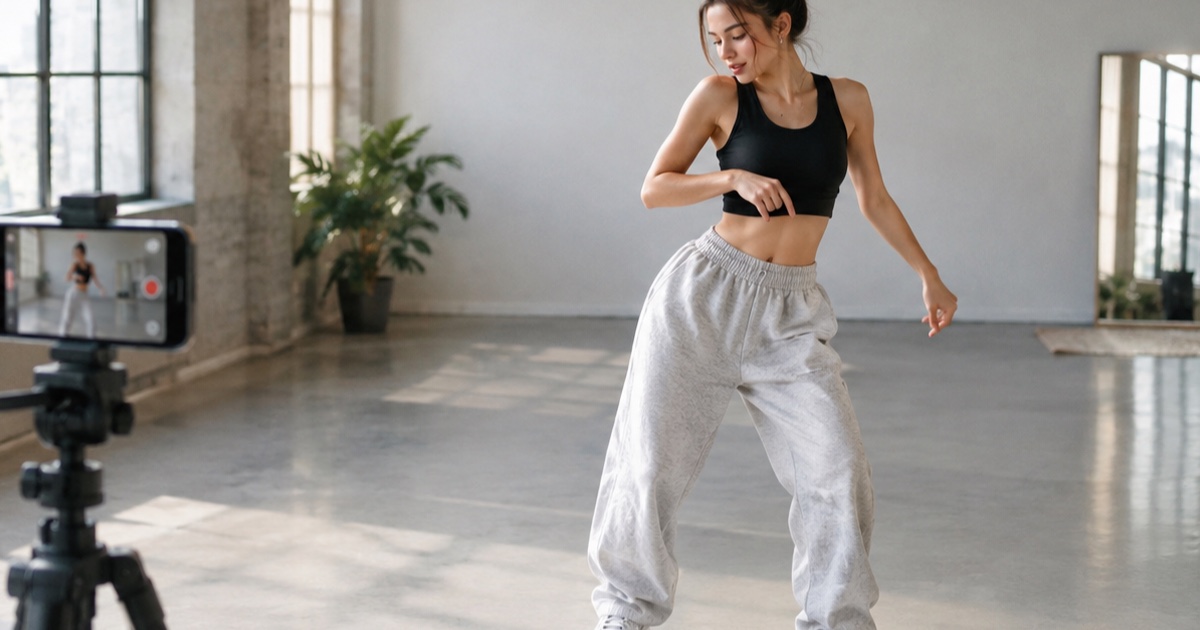
How to Make a 12-Second Vertical Hero-Point Dance Clip from One Photo
A practical step-by-step tutorial for turning one photo into a 9:16 hero-point dance clip with Looks Can Kill AI — source photo tips, motion prompts, credit costs, and export notes.
How to Write a Hero-Point Dance Prompt for Looks Can Kill AI
A practical prompt guide for the IVE “Looks Can Kill” hero-point dance vibe: subject lock, scene, one action, camera and exclusions, with five complete example prompts.